

Imports
Bring useful context from ChatGPT, Claude, or another agent into Fluso as projects, files, and context.
Imports move useful context from another AI product into Fluso.
This is context migration, not chat migration. Fluso reads an export zip and turns the useful parts into projects, files, and markdown context. It does not recreate your old ChatGPT or Claude conversations as native Fluso chats.
Use imports when you already have work somewhere else: project notes in another agent, ChatGPT conversations with research and drafts, Claude conversations with decisions, or a folder of files an agent can package for you.
What gets imported
Fluso creates:
- Projects for high-confidence areas of work.
context.mdfiles with goals, decisions, useful conversations, and next steps.- Supporting files and attachments when the export includes them.
- A Home spillover file for useful context that does not deserve its own project.
Low-signal conversations stay out of the project list. The import is meant to give Fluso working context, not a complete archive.
Open the import dialog
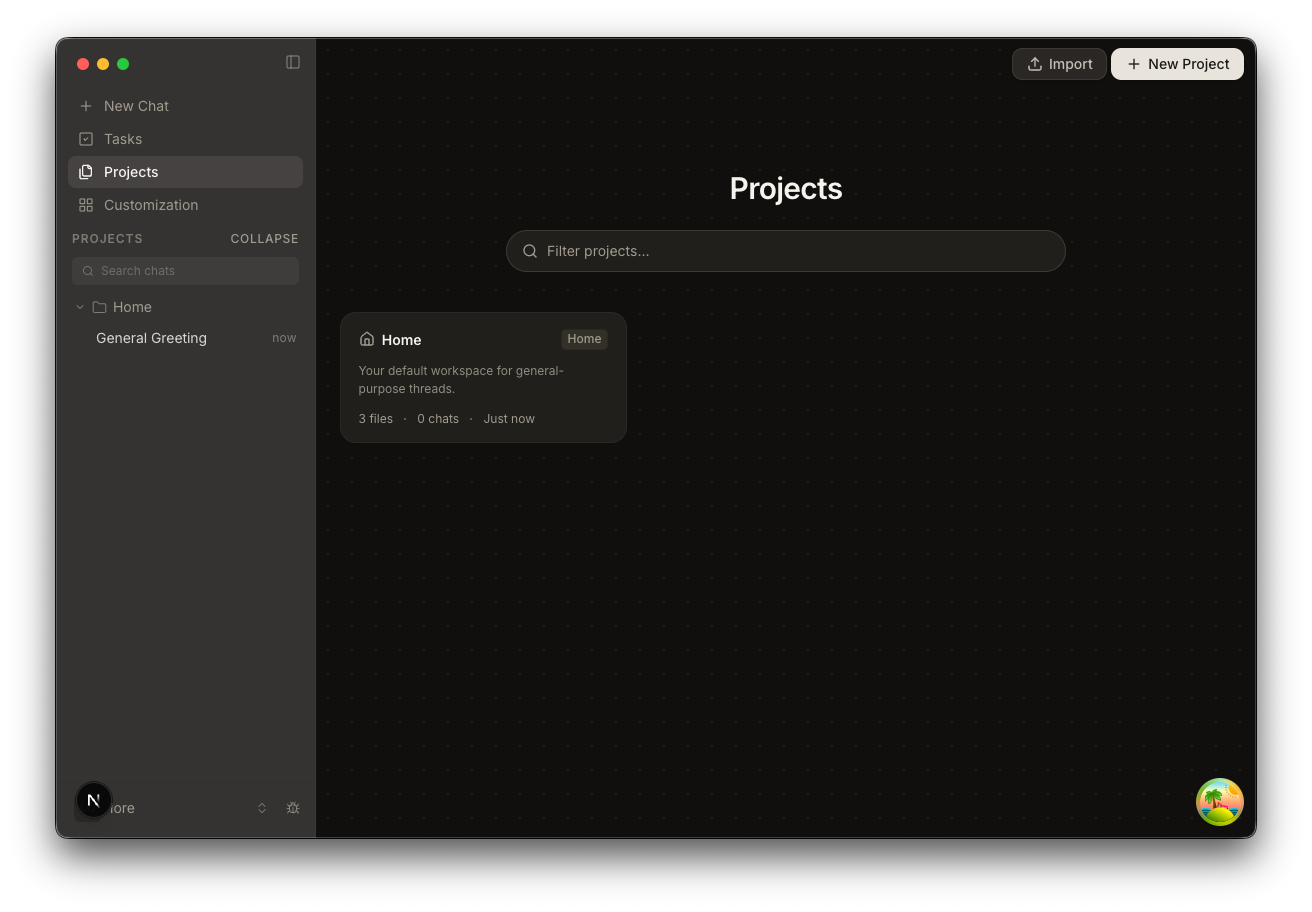
Open Projects from the left sidebar. Click Import in the top right.
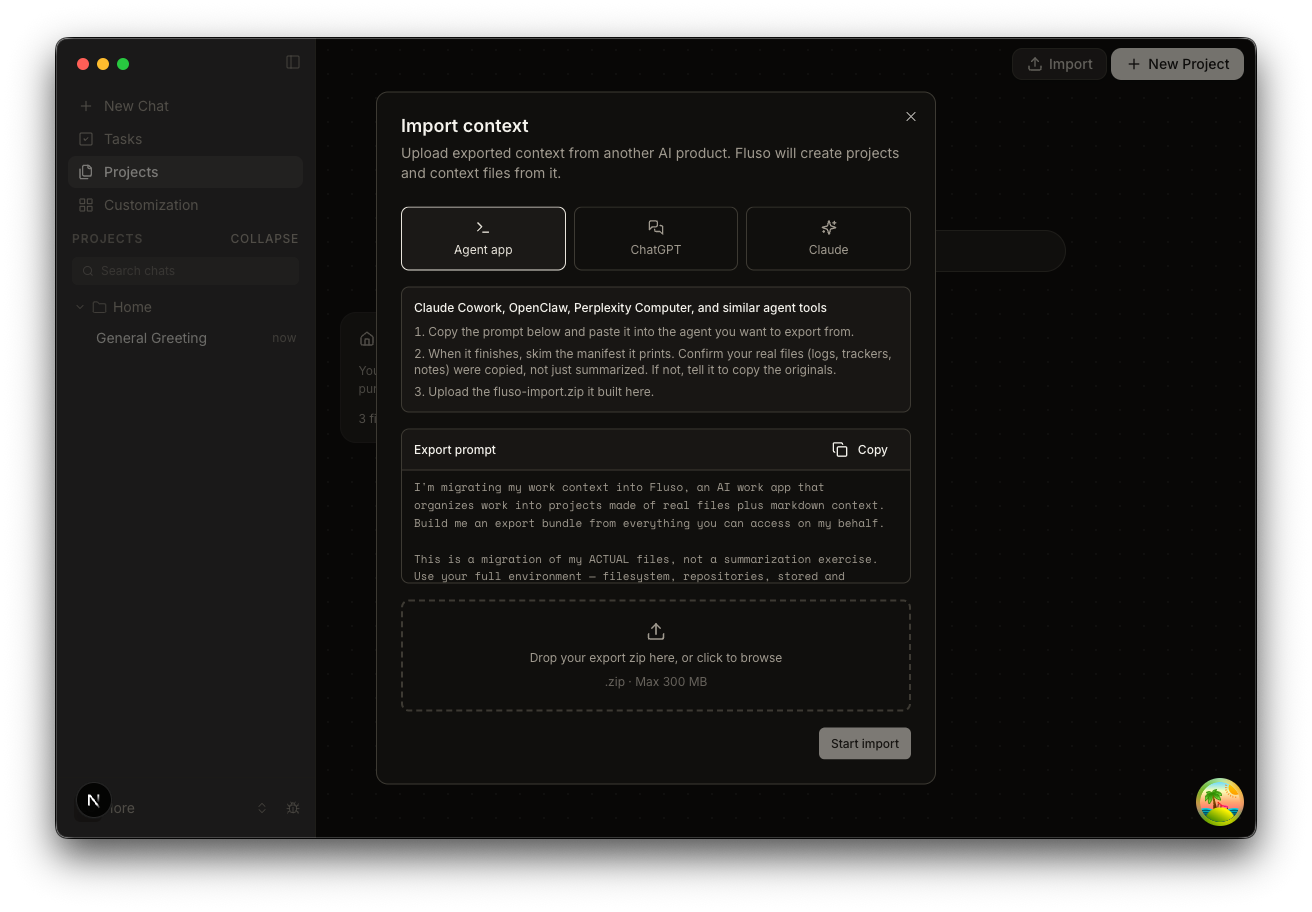
The dialog is called Import context. Pick the source, follow the instructions, then upload the zip.
Sources
Agent app
Use this for Claude Cowork, OpenClaw, Perplexity Computer, and similar agent tools.
Click Copy next to the export prompt, paste it into the agent you want to export from, and let it build fluso-import.zip.
Before you upload the zip, skim the MANIFEST.md the agent prints. Check that real files were copied, especially logs, trackers, notes, datasets, and per-entry files. If the bundle is only a few kilobytes of summaries, ask the source agent to copy the original files instead.
The expected shape is:
fluso-import.zip
  project-a/
    context.md
    conversations.md
    decisions.md
    files/
      ...
  project-b/
    context.md
    files/
      ...
Each top-level folder becomes a Fluso project. Files inside it become that project's files. A root context.md becomes the project's context.
ChatGPT
Use the official ChatGPT data export.
- In ChatGPT, open Settings → Data controls → Export data.
- Confirm the export.
- Wait for the "Your data export is ready" email.
- Download the zip and upload it to Fluso. Do not unpack it first.
The email link expires after 24 hours.
Claude
Use the official Claude data export.
- In Claude, open Settings → Privacy.
- Select Export data.
- Wait for the email from Anthropic.
- Download the zip and upload it to Fluso.
Large Claude exports may arrive as multiple batch files. Import them one at a time.
What happens after upload
After you click Start import, Fluso creates a real import thread in the Home project and starts the import there.
You can close the dialog. The import keeps running. Reopen the thread from the dialog if you want to watch the work happen.
When the import finishes, the dialog shows the projects created, files added to Home, skipped items, and warnings. The thread also ends with a readable summary.
Limits
| Item | Limit |
|---|---|
| Upload file | .zip only |
| Zip size | 300 MB |
| Sources | Agent app, ChatGPT export, Claude export |
| Projects | Up to 8 planned; 10 hard limit |
| Files per project | 500 |
| Claude batches | Import one batch at a time |
If a project name already exists, Fluso keeps both by adding a number to the imported project name.
Good imports
A good import has real source material, not just summaries.
For official ChatGPT and Claude exports, upload the downloaded zip unchanged.
For agent-app exports, use the prompt in the dialog and check the manifest before uploading. The manifest should show the files and folders the source agent found, with each item marked as copied or summarized.
For projects with logs, trackers, journals, spreadsheets, or datasets, preserve the original files. A summary is useful context, but it should not replace the detailed record.
Troubleshooting
The zip is rejected
Check that you uploaded a .zip file under 300 MB. For ChatGPT and Claude, upload the official export zip without unpacking it.
The import failed
Open the import thread from the dialog. The thread usually shows the step that failed and what Fluso tried before stopping.
The agent-app bundle only imported summaries
Go back to the source agent and use the export prompt again. Ask it to copy the original files and print the manifest before zipping the folder.
I expected more projects
Fluso groups conservatively. One-off or weak conversations go into a Home spillover file instead of becoming separate projects.
Next
After importing, open one of the new projects and ask:
"Summarise this project. What is decided, what is still unclear, and what should I do next?"
For project habits after import, see Projects and Going deeper.