

Apps and MCP servers
Every connection in Fluso is an MCP connection. One-click managed apps, custom servers by URL, and per-tool permissions.
Fluso reaches other software through MCP. There is no separate connector system anymore: a Gmail connection, a Slack connection, and a private MCP server your team runs are all the same thing — an MCP connection with its own sign-in and its own tool permissions.
Two ways in, one list:
- Apps. A catalog of about a hundred managed apps — Google Workspace, GitHub, Slack, Linear, Notion, Jira, HubSpot, Stripe, and so on. One click, sign in on the app's own page, done. Fluso runs the MCP server for you.
- Custom server. A publicly reachable HTTPS endpoint that implements MCP over Streamable HTTP. This can be a server your team operates or a SaaS endpoint outside the managed catalog.
Where to find them
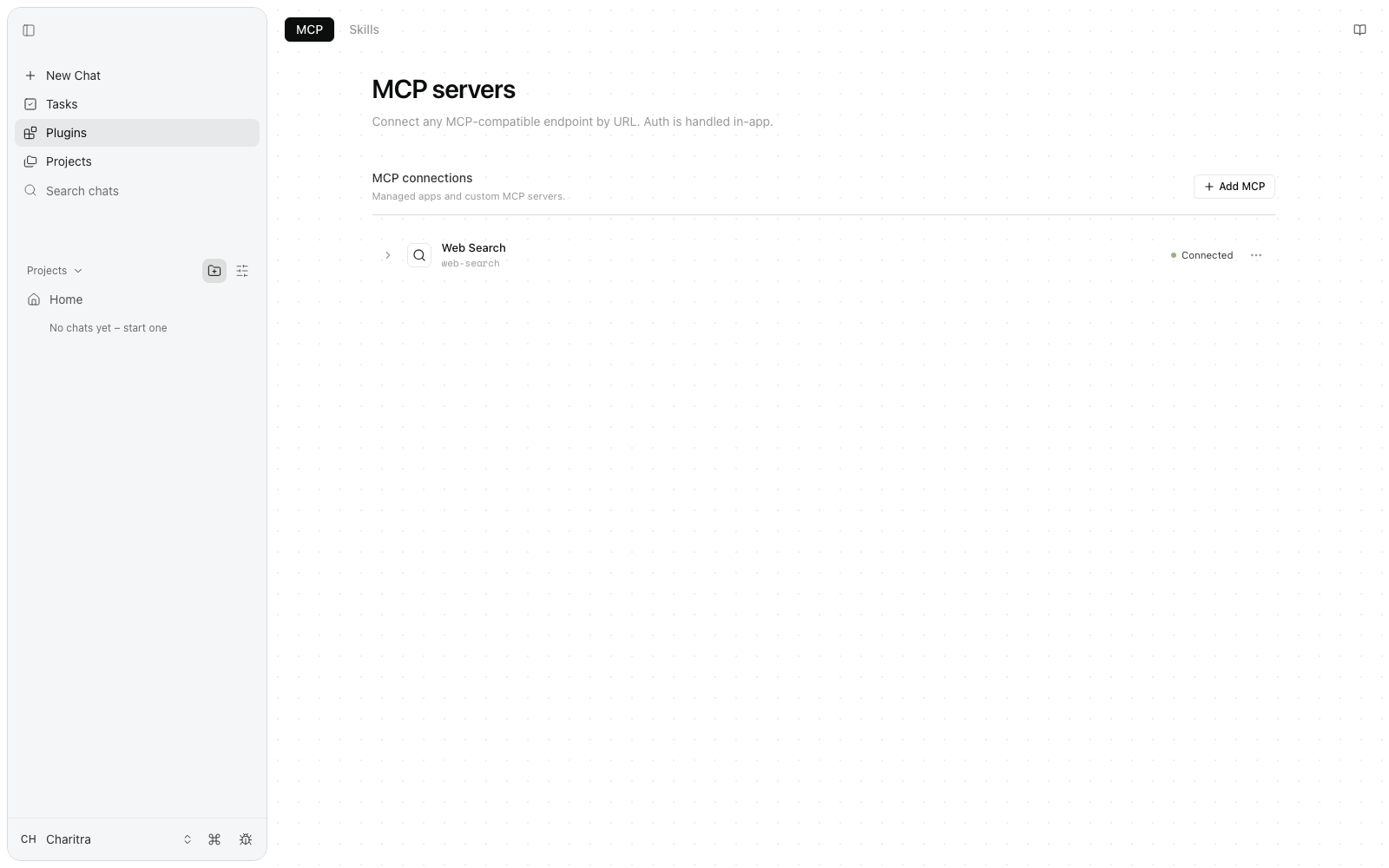
Open Plugins in the left sidebar. The MCP tab lists every connection in this workspace — managed apps and custom servers together — with its status. Web Search is connected out of the box. The Skills tab on the same page holds skills, which shape how Fluso works rather than what it can reach.
Connecting an app
Click Add MCP. The dialog opens on the Apps tab.
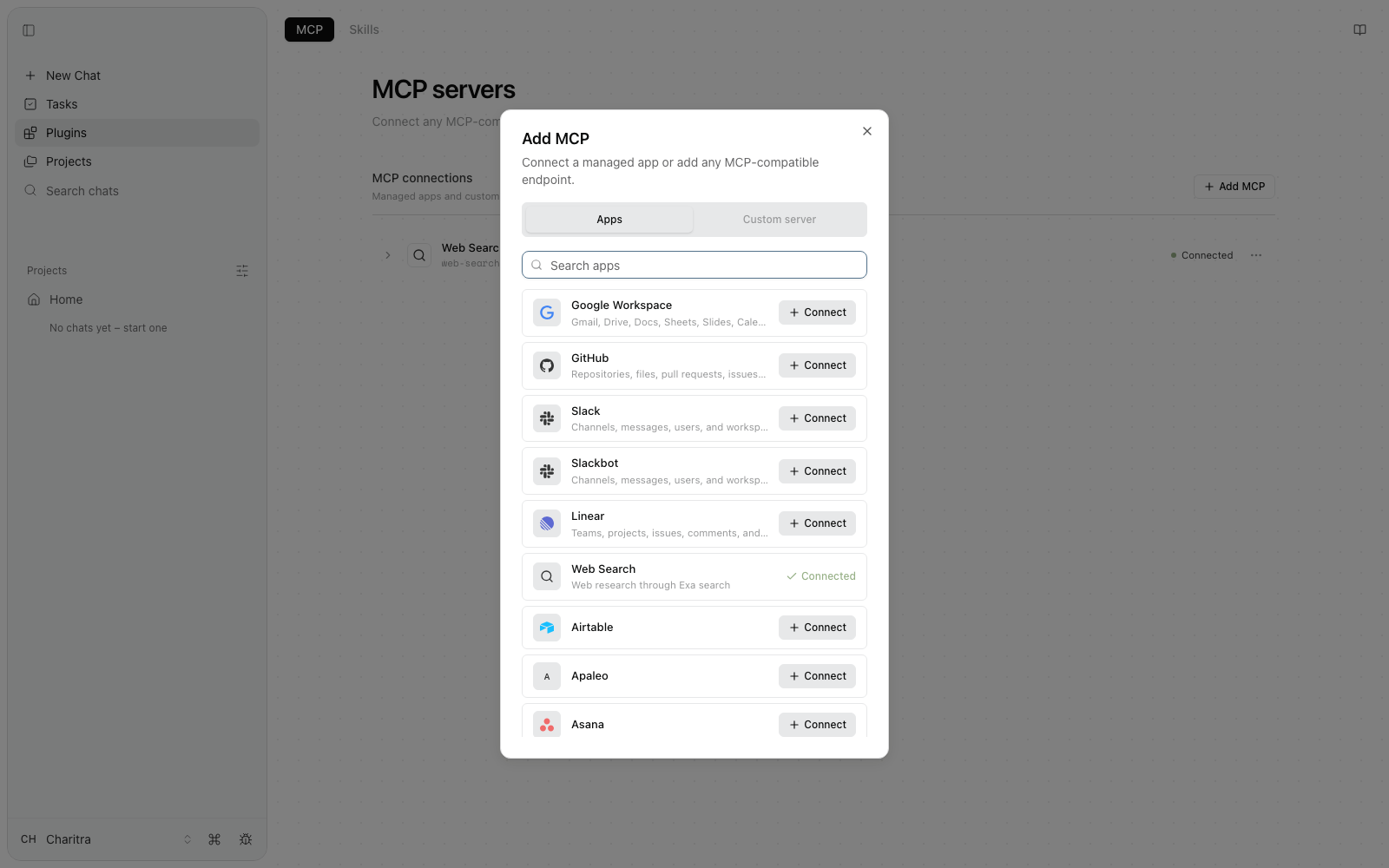
Search for the app, click Connect, and sign in on the app's own login screen. You approve the permissions there, the window closes itself, and the row appears in your list. Fluso can use the app from the next message on.
A few rows worth knowing about:
- Google Workspace is one connection that covers Gmail, Drive, Docs, Sheets, Slides, Calendar, Meet, and Tasks. One sign-in, the whole suite.
- Slack connects as you; Slackbot connects with a bot token instead. Most people want Slack.
- Web Search (Exa) comes pre-connected on new workspaces.
The catalog runs from the everyday — Outlook, Teams, Notion, Dropbox, Zoom — to the specialised: Salesforce, Stripe, Supabase, Sentry, Figma, YouTube, Zendesk, and the rest. If an app you need is missing, email support@premai.io, or add it yourself as a custom server if it has an MCP endpoint.
Connecting a custom server
Switch to the Custom server tab and paste the endpoint URL.
Use the exact Streamable HTTP endpoint. It must be reachable from Fluso over
public HTTPS; localhost, private network addresses, and stdio commands
are not connection URLs. The workspace or organization
network-egress policy, plus any provider
policy applied to that origin, must allow it.
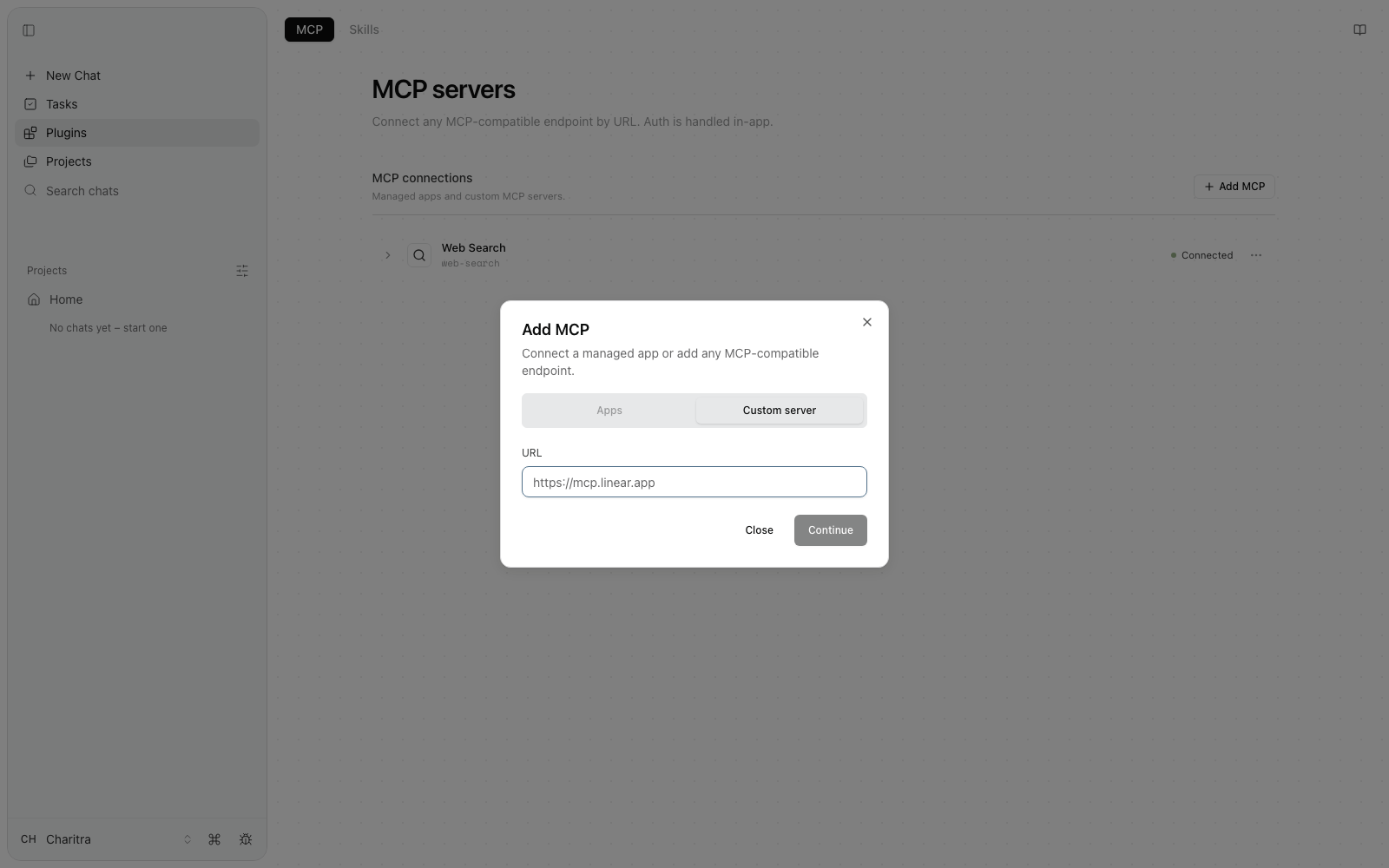
Click Continue. Fluso probes the URL — no credentials are sent — and reads the server's public sign-in metadata. The result appears as a suggestion, with four tabs for the auth method the server actually uses:
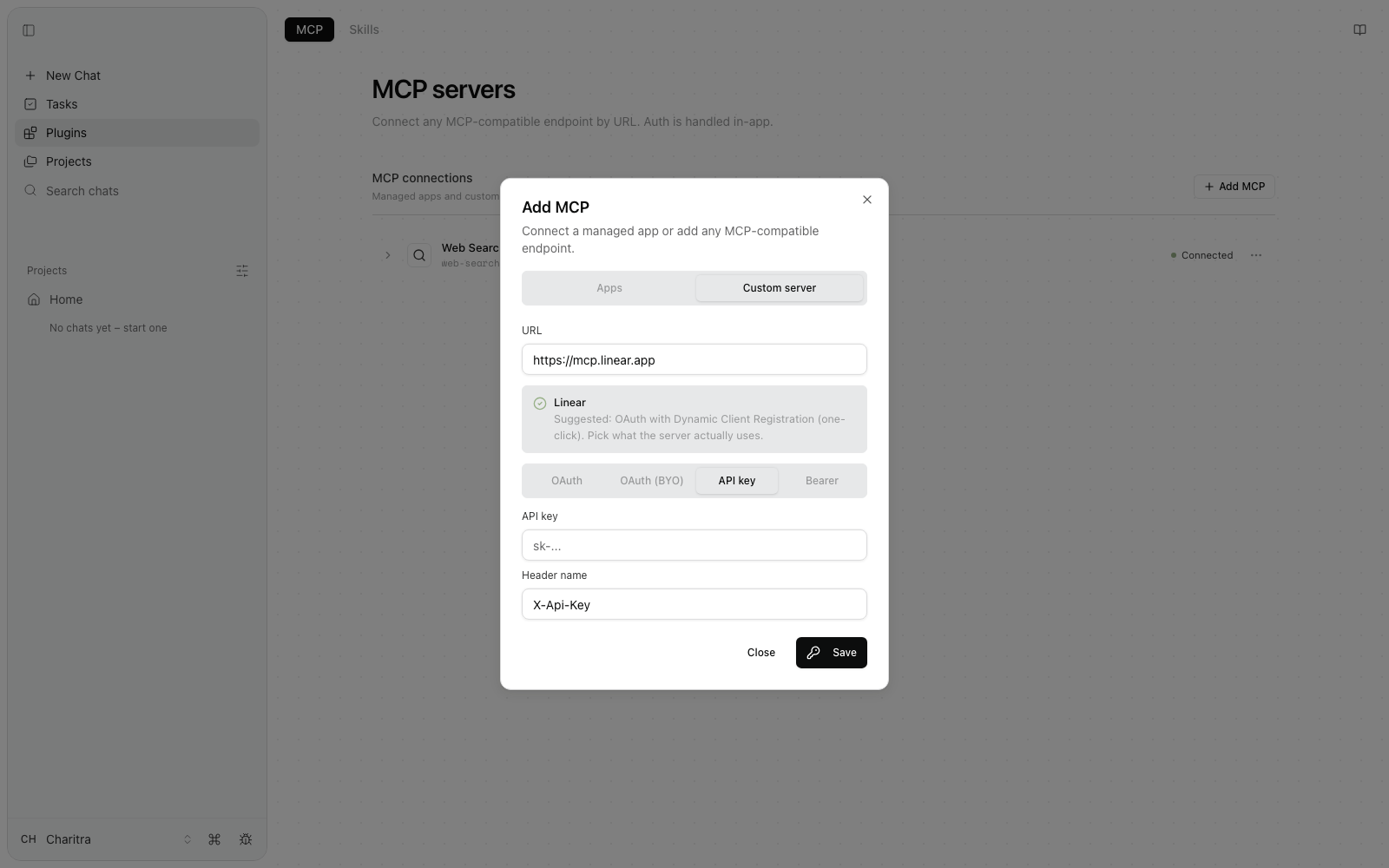
OAuth
The one-click case. The server supports OAuth with Dynamic Client Registration, so Fluso registers itself on the fly. Click Authorize, sign in on the server's own page, and the row appears. This is what Linear, Notion, and most modern MCP servers look like.
OAuth (BYO)
OAuth, but the server doesn't let Fluso register itself. Register an app in the server's developer console and bring the credentials back.
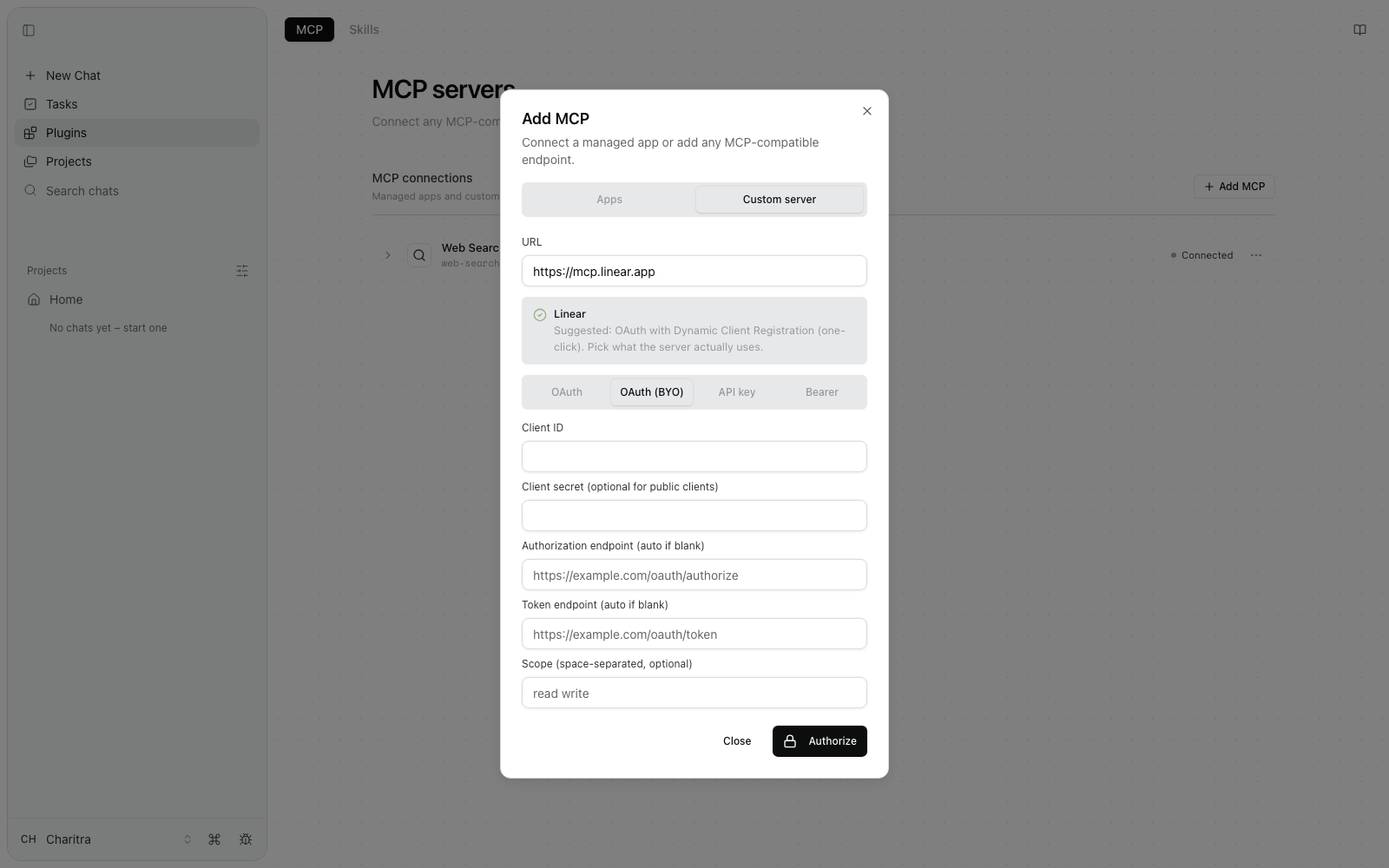
Client ID and secret go where they say. Authorization and token endpoints are auto-detected if left blank. Authorize works the same as the OAuth tab from there.
When the provider's console asks for a redirect URL, use: https://api.fluso.ai/v1/mcp-oauth/callback
API key
The server expects a key in an HTTP header. Paste the key; the header name defaults to X-Api-Key. Click Save.
Bearer
A static token sent as Authorization: Bearer <token> — the GitHub-PAT style.
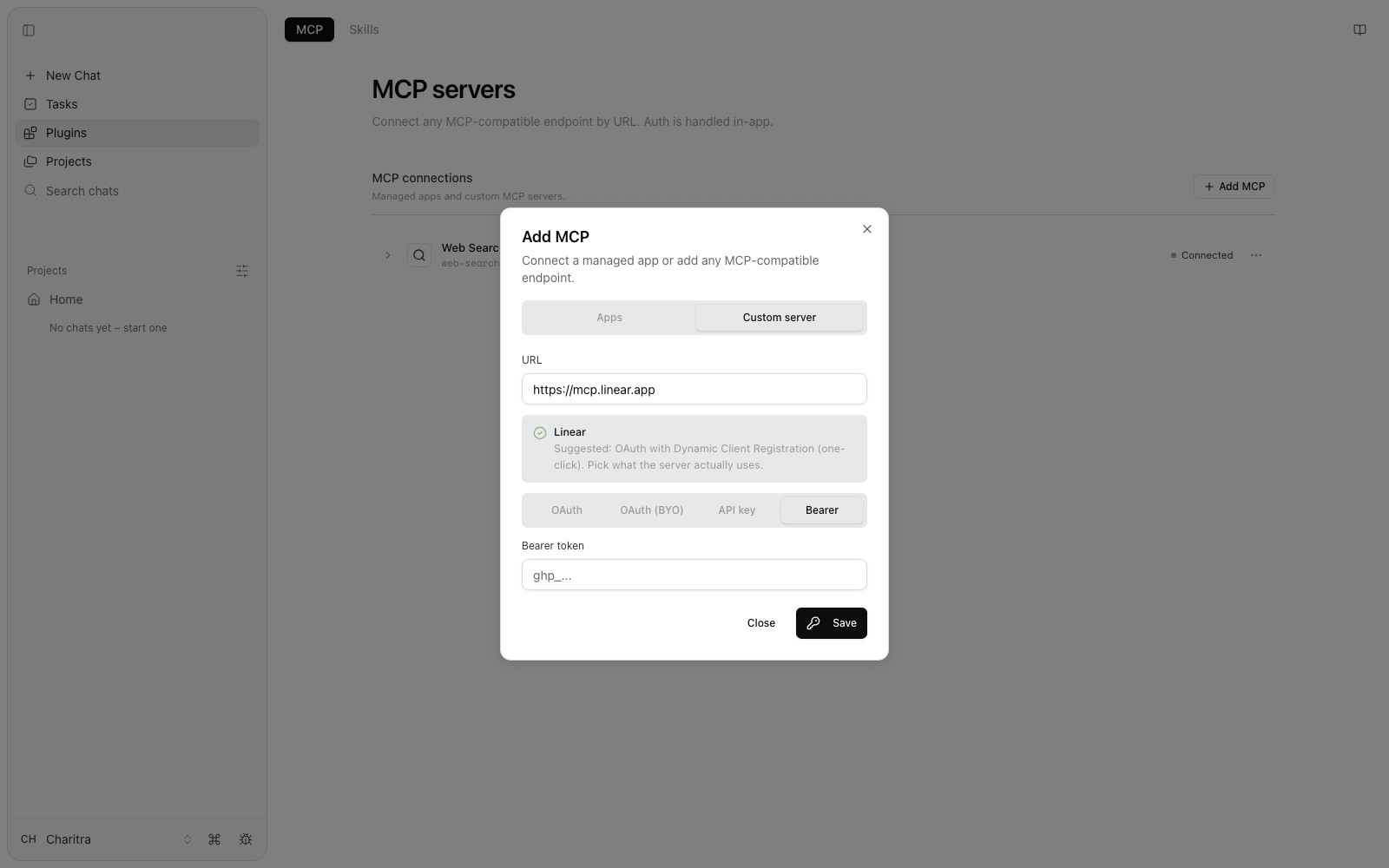
Whatever you paste goes to the backend over HTTPS and is stored encrypted at rest, the same way OAuth tokens are. The UI does not persist or redisplay it after save, and it does not appear in logs.
Connecting from chat
You don't have to start from the Plugins page. Ask in chat:
"Connect the Notion MCP server for me."
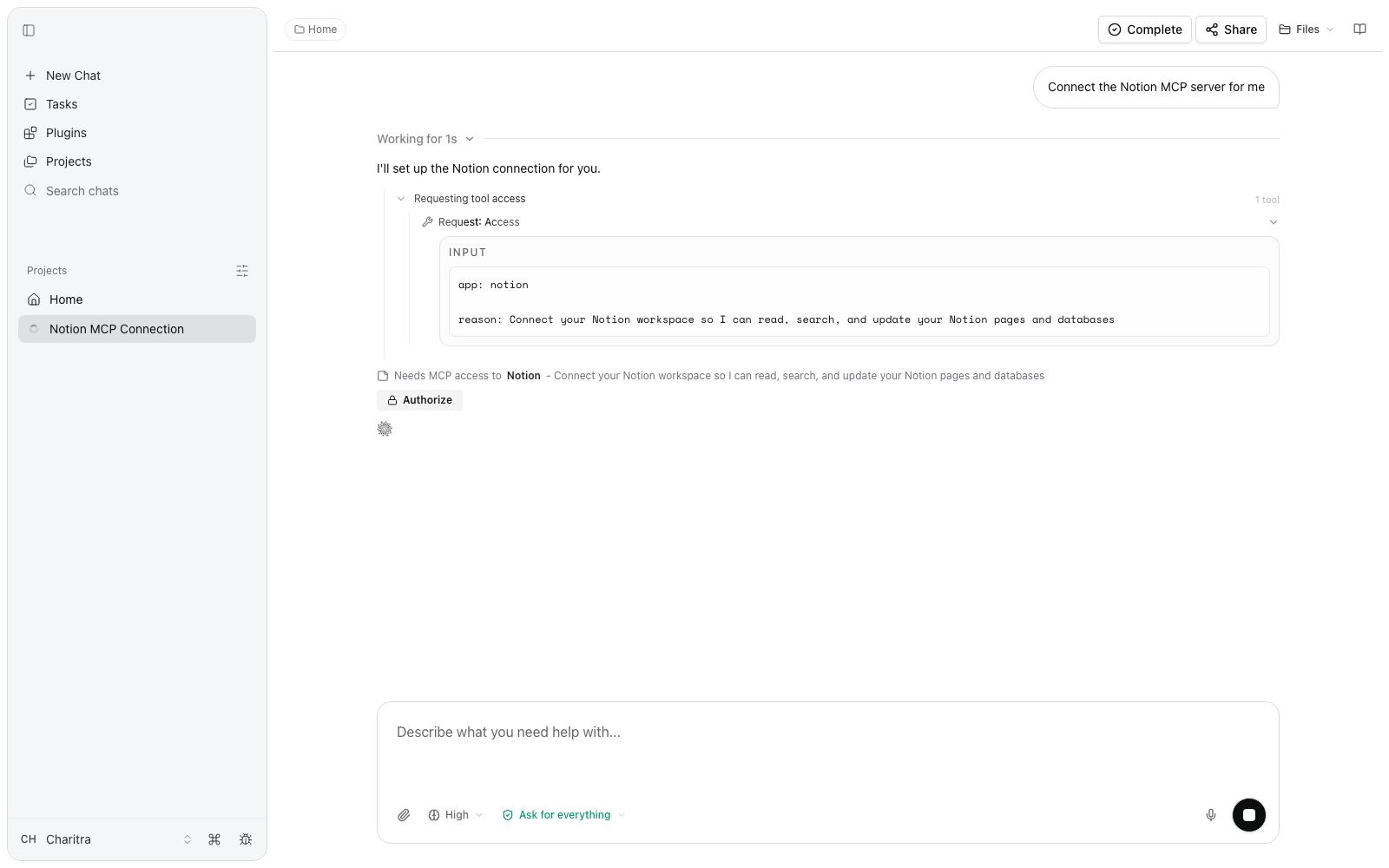
Fluso surfaces the same sign-in inline as an access card. Click Authorize, approve on the app's page, and the conversation carries on. Connections made in chat show up on the Plugins page; connections made on the Plugins page are usable from chat. One list, two ways in.
Tool permissions
Expand any connection row to see its tools and set rules per tool.
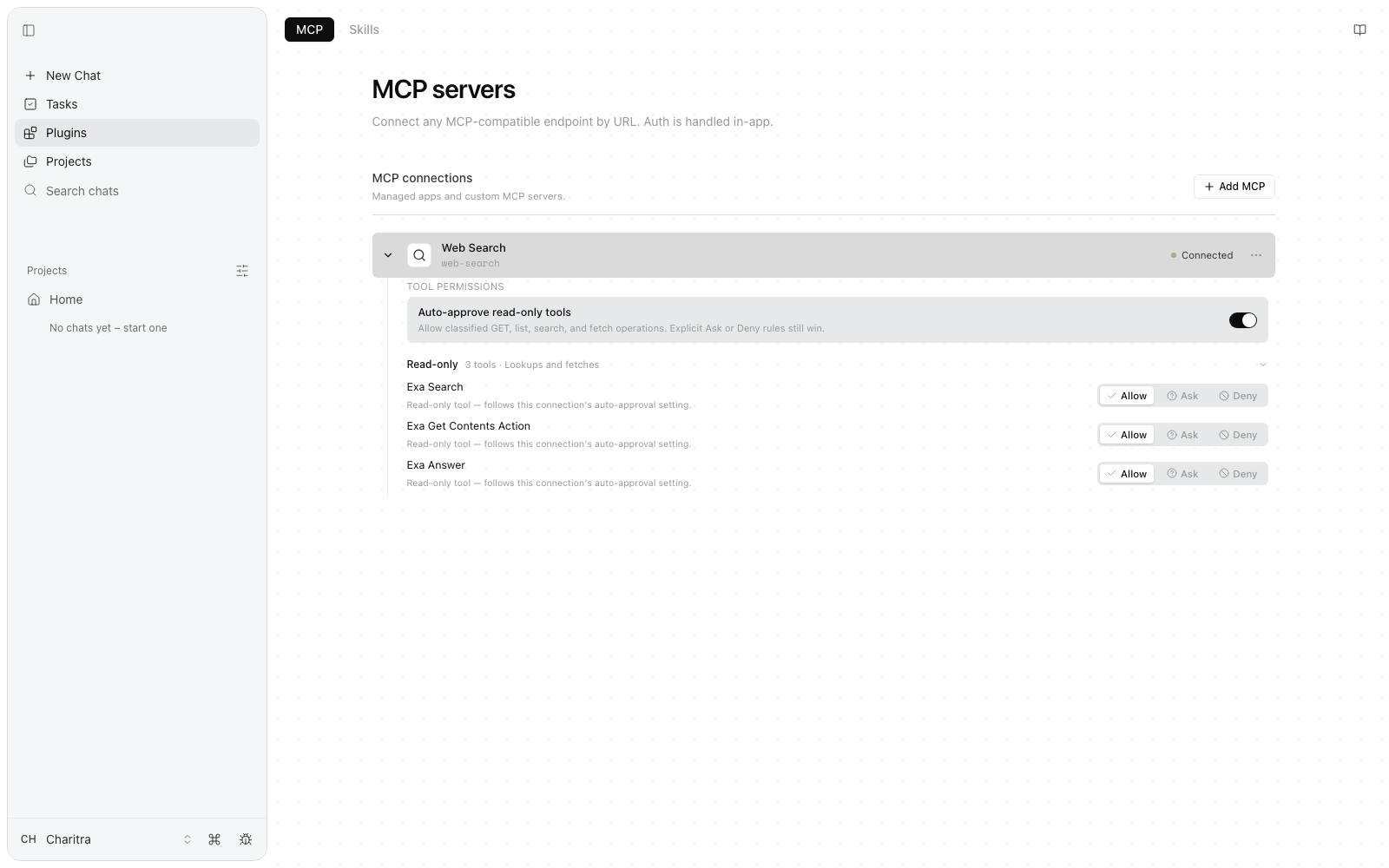
- Auto-approve read-only tools allows operations classified as GET, list, search, and fetch to run without asking. Explicit Ask or Deny rules still win.
- Each tool has its own Allow, Ask, or Deny. Allow runs without asking, Ask pauses for your approval in chat, Deny blocks the tool outright.
- Tools are grouped read-only versus everything else, so you can see at a glance what can only look and what can act.
These rules work together with your chat-level approval mode. See Approvals and permissions for how the modes and rules interact.
Managing connections
Each row shows the connection's status. The three-dot menu holds the two actions you'll need:
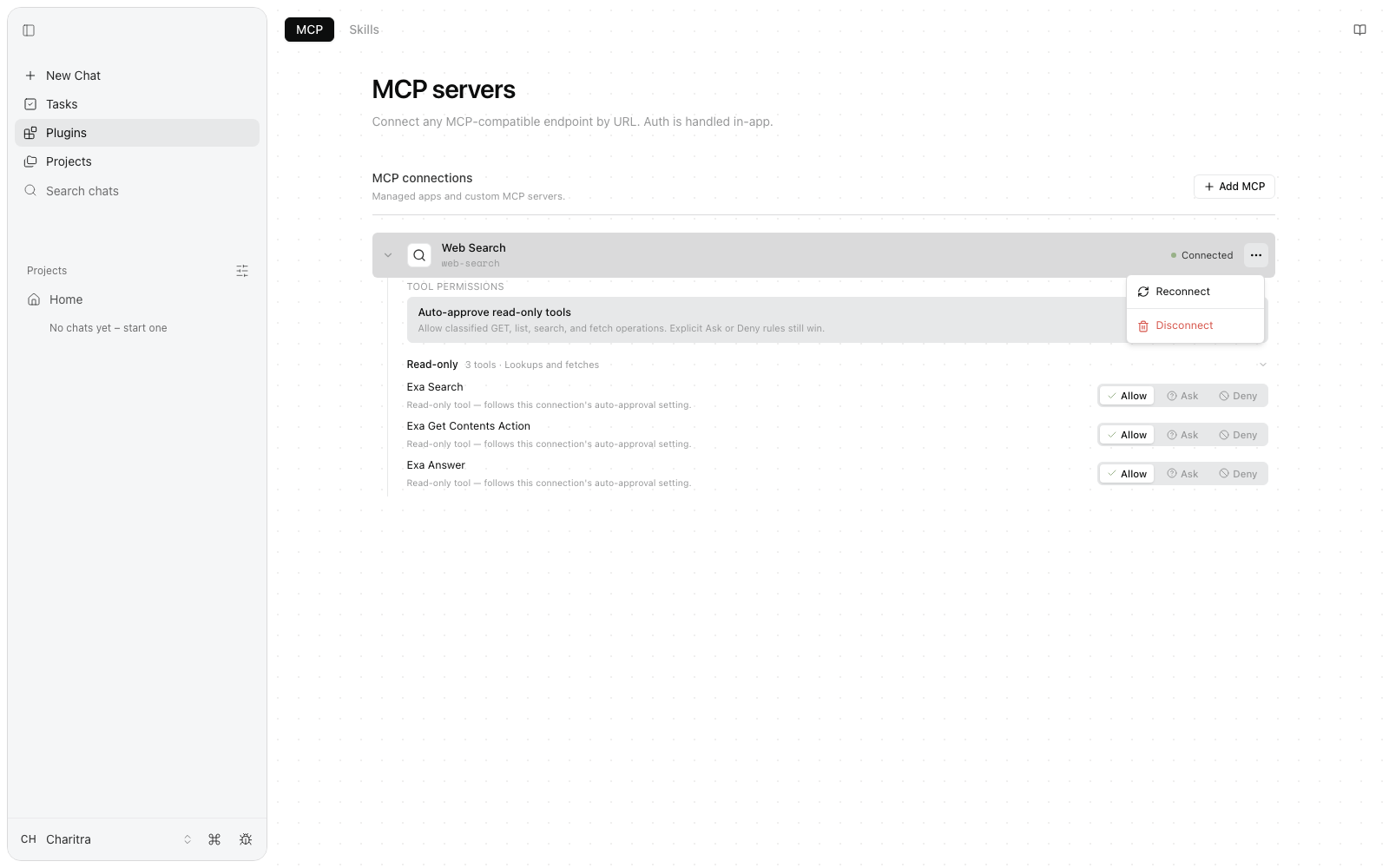
Reconnect drops the stored sign-in and runs the connect flow again. Use it when a connection stops working, or to sign in as a different account.
Disconnect removes the connection. Fluso loses access from the next message on. This removes the sign-in on Fluso's side only — to revoke it at the source, use the app's own settings page (for Google, Google Account → Security → Third-party apps; for GitHub, Settings → Applications).
Things to know
- Connections are per account, not per chat. Sign in once; every new chat can use the connection, and it survives runtime restarts in the background.
- The runtime never stores tokens. Tools fetch a short-lived token from the backend per request, use it, and drop it. Sign-in happens on the app's own page — Fluso never sees your password.
- Custom servers have prerequisites. Fluso supports public HTTPS Streamable HTTP endpoints with OAuth, API-key, or bearer-token access. A successful sign-in does not override network-egress or provider policy.
- Rules set by your organization take precedence over anything you allow yourself.
MCP servers run tools on your behalf. Only connect ones you trust. A malicious server can advertise harmless-looking tools that do harmful things.
Troubleshooting
Fluso can't find the server's sign-in metadata
The URL is probably the docs page, not the MCP endpoint. Try mcp.<service>.com or <service>.com/mcp.
A connection stopped working
The app probably revoked or rotated the token. Open the row's three-dot menu and click Reconnect.
The server rejects one-click OAuth
The server advertises Dynamic Client Registration but rejected the registration. Switch to OAuth (BYO) and register an app in the server's developer console yourself.
A tool keeps asking for approval
Its rule is set to Ask, or your chat's approval mode is Ask for everything. Set the tool to Allow in the row's tool permissions, or change the mode — see Approvals.
Next
Per-app setup and prompts: Gmail, Google Calendar, Slack, GitHub. For capabilities that shape how Fluso works rather than what it can reach, see Skills.