

Tasks
Fluso's task list, mostly populated automatically from email, meetings, and Slack. Where tasks come from, how to open one, and how to keep the list tidy.
A task in Fluso is a small piece of follow-up that came out of your day. A reply someone is waiting for. A meeting to confirm. A decision someone asked you for. Fluso watches the apps you have connected and turns the action items into tasks for you.
You spend your time on the work. The list mostly keeps itself.
Where tasks come from
Most tasks arrive without you asking. Fluso pulls them out of your connected apps in the background.
Email. A message that asks you to do something becomes a task on you. The thread is linked, so the original is one click away.
Meetings. Process a meeting transcript and every action item becomes a task. Items on you sit in your list. Items on someone else are tagged with the person.
Slack. A message in a channel you have pointed Fluso at, asking for a decision or a follow-up, ends up as a task. The thread is linked back.
You can also type tasks in yourself. The + Add a task... input at the top of the page works, or you can ask Fluso in chat:
"Remind me to submit the expense report by Monday."
The Tasks page
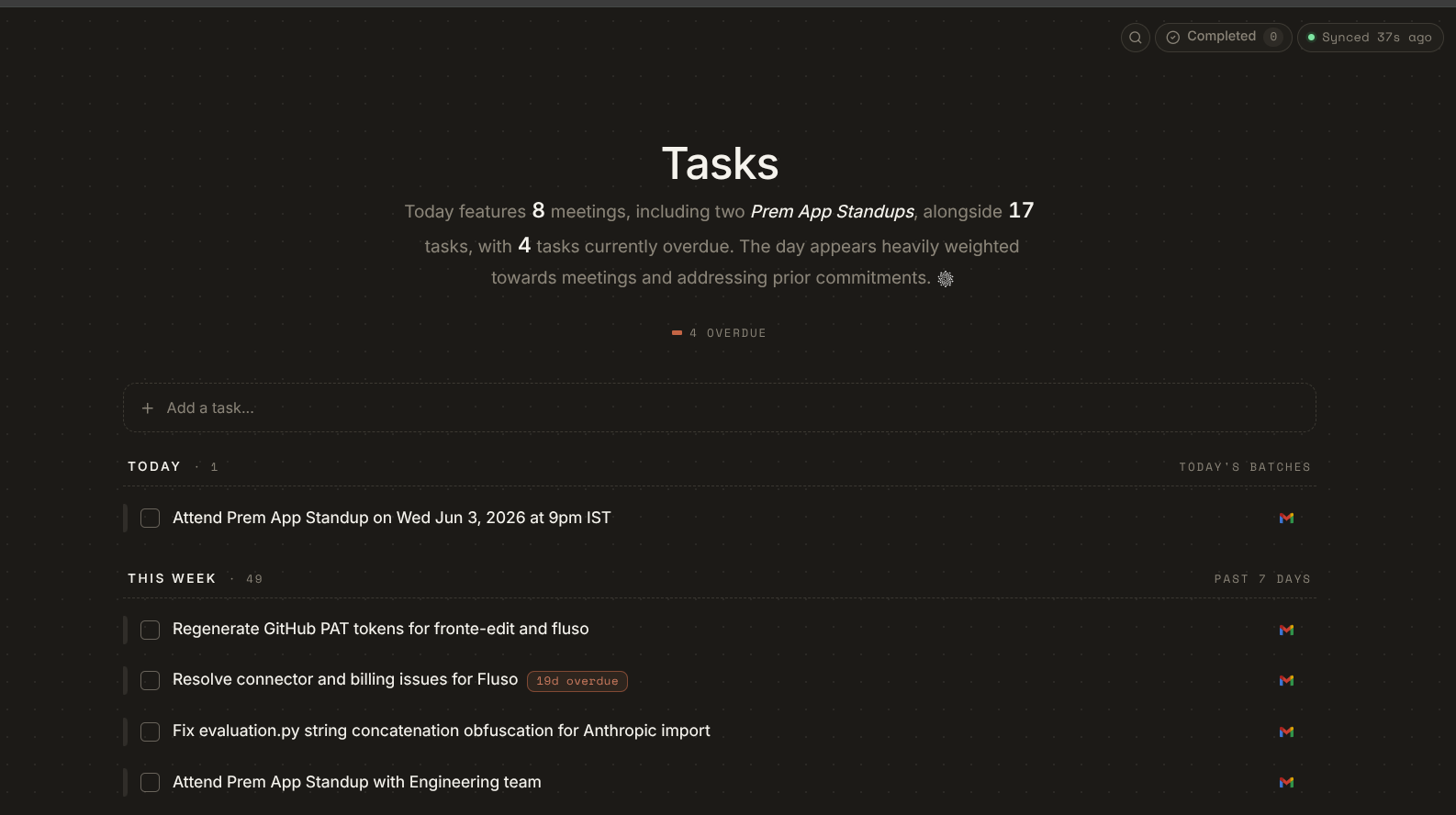
Open Tasks from the left sidebar.
The first thing you see is a short brief Fluso writes for you each day. What today looks like, how many meetings and tasks you have, what is overdue. Below it, an Overdue pill counting the items pulling on you from earlier in the week. A pulse on the day before you start poking at the list.
Under the brief, an + Add a task… input, and below that the list itself. Sections are time-based.
- Today. Tasks for today, with the count next to the heading.
- This week. Everything else queued for the week, in the batches it came in.
Every task row shows a small source icon on the right. A Slack mark for tasks from Slack, an envelope for tasks from email. One glance tells you where the work came from. The right rail also labels the batch the row arrived in, like Today's batches or Past 7 days.
At the top right, a Completed pill flips the view to tasks you have already finished, and a Synced pill shows how recently Fluso last checked your apps.
Opening a task
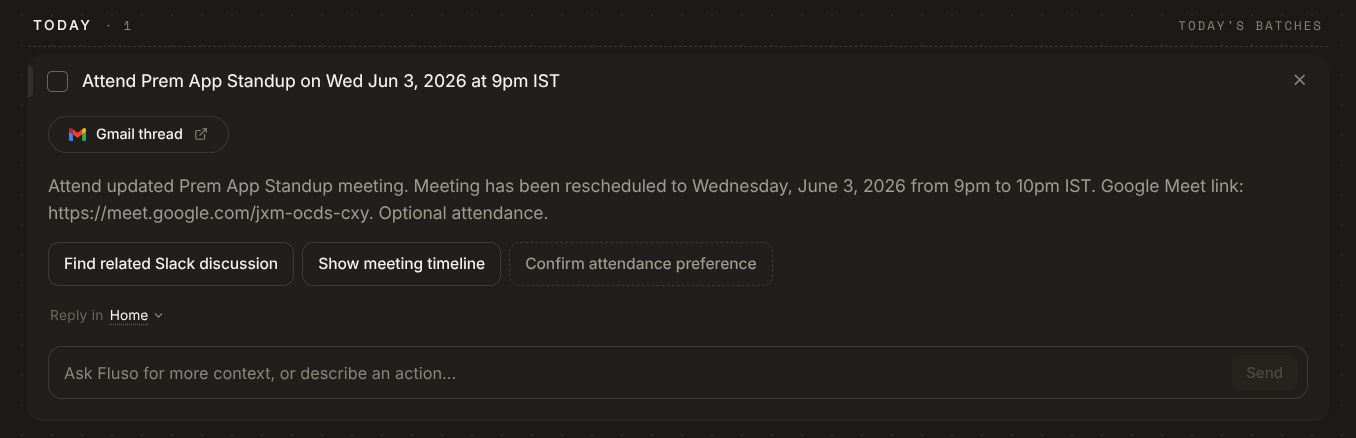
Click a task and it expands in place. You see:
- The source as a pill at the top, linking back to the original message or thread. A Gmail thread link for email tasks, a Slack link for Slack tasks.
- A short summary of the task, written from the context Fluso read.
- A row of suggested next steps for this specific task. On a meeting task, that might be Find related Slack discussion, Show meeting timeline, Confirm attendance preference. Each button kicks off the action.
- A reply input. Reply in [Project] scopes the conversation to a project, defaulting to Home. Use it to ask Fluso for more context, or to describe an action in your own words instead of picking a suggestion.
You read the brief, pick a suggestion or describe what you want, and move on.
Sync activity
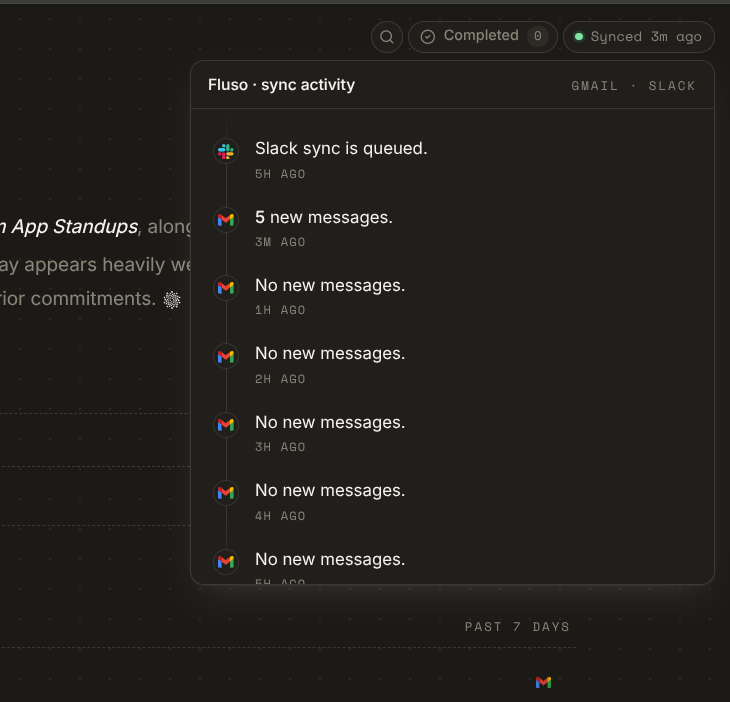
Top right of the Tasks page sits a small Synced pill with how long ago Fluso last checked your apps. Click it for the Fluso · sync activity feed: a chronological list of what came in and from where: Slack sync is queued, 5 new messages from Gmail three minutes ago, no new messages an hour ago, no new messages two hours ago. Useful when you want to know whether something landed without going to check the source app.
Updating tasks
Updates are conversational. You do not have to find the right menu.
"Mark the vendor contract task as done."
"Move the presentation to next week."
"Reschedule all overdue tasks to tomorrow."
Or check the task off in the list. Either works.
Tasks and projects
Tasks belong to a project when the context calls for it. The reply input on an opened task defaults to the project the task came out of, with a dropdown to switch. A task created inside a project sits in that project's view as well.
If you want a project-scoped list, ask:
"Show me all tasks for the Q3 launch project."
One small habit
Spend two minutes each morning on the auto-created list. Adjust anything Fluso got slightly wrong, kill anything that is not really a task, check off what you finished yesterday. After that, the list reflects the day, and you can stop thinking about it.
Next
Tasks lean hardest on email and meetings. See Gmail and Google Calendar for the source apps that feed most of them.